
FxMagnetic 3.0.2 is the biggest update of FxMagnetic so far. It runs on MetaTrader 4 and MetaTrader 5, lets you set trading hours in New York or London time, downloads price history by itself, backtests on up to 200 signals, and handles trades more safely for prop-firm accounts. Your licence key stays the same. To update, install the 3.0.2 download, put the 3.0.2 Scanner and Autotrader on your charts and enter your settings again (the 3.0.2 files have new names, so charts don’t take over the old settings).
What’s new in FxMagnetic 3.0.2
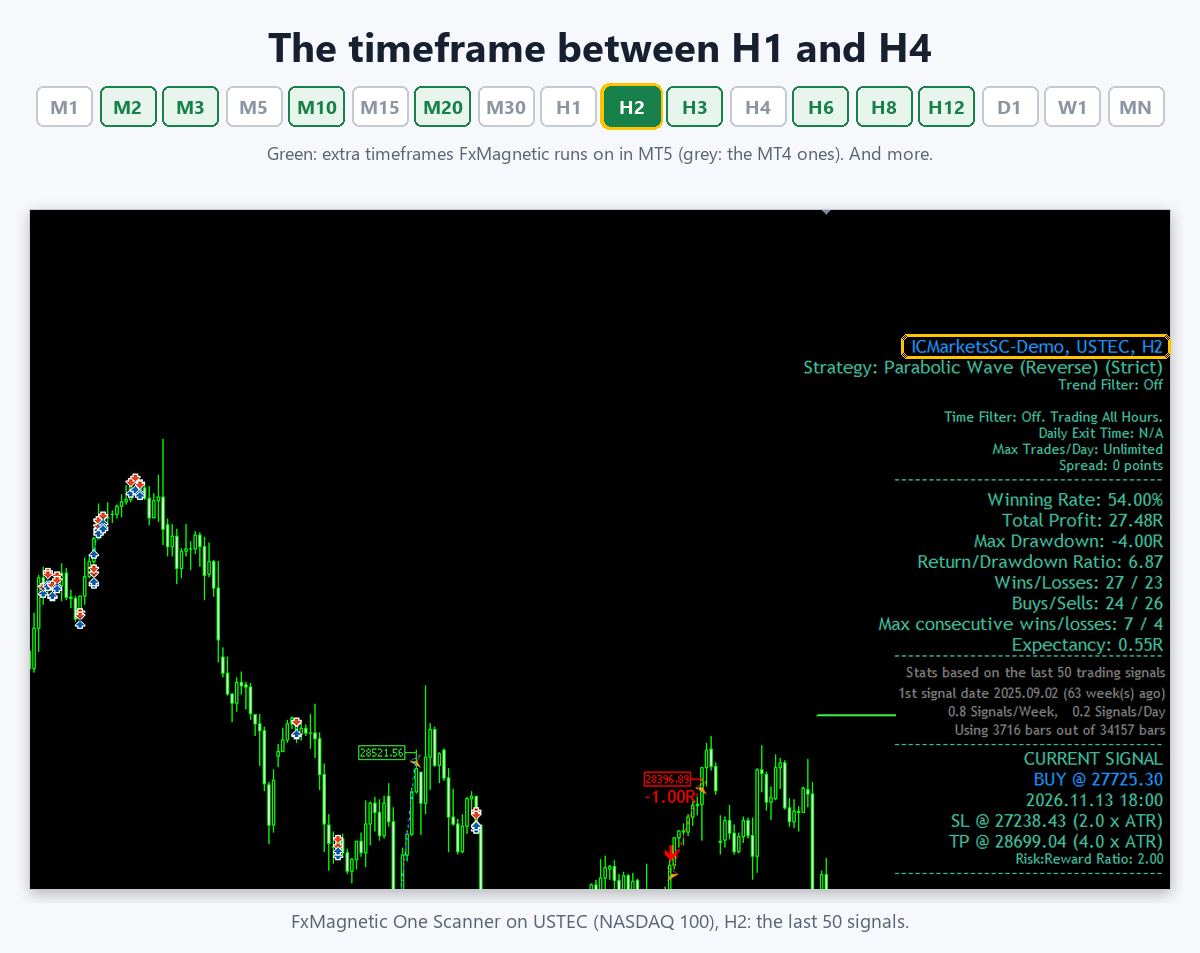
MetaTrader 5, with more brokers, markets and timeframes
FxMagnetic now runs on MT5 as well as MT4, with the same apps and the same settings. Your trade filters (SR Levels, Hull Shield, Daily Compass, Trend) work on MT5 too, in the Scanner and the Autotrader, and so does the Equity Simulator. That means more brokers and prop firms, the stocks, indices and crypto your broker offers on MT5, and the MT5-only timeframes (M2, M3, M10, M20, H2, H3, H6, H8, H12 and more). Every download contains both versions. MT5 is included for subscribers and ULTRA owners; lifetime owners can add it with the MT5 Upgrade. MT4 stays the same for everyone. On MT5 the Autotrader needs a hedging account (most forex and CFD accounts are); on a netting account only the Scanner works, and the Autotrader tells you so. Setup: How to Install FxMagnetic on MT5.
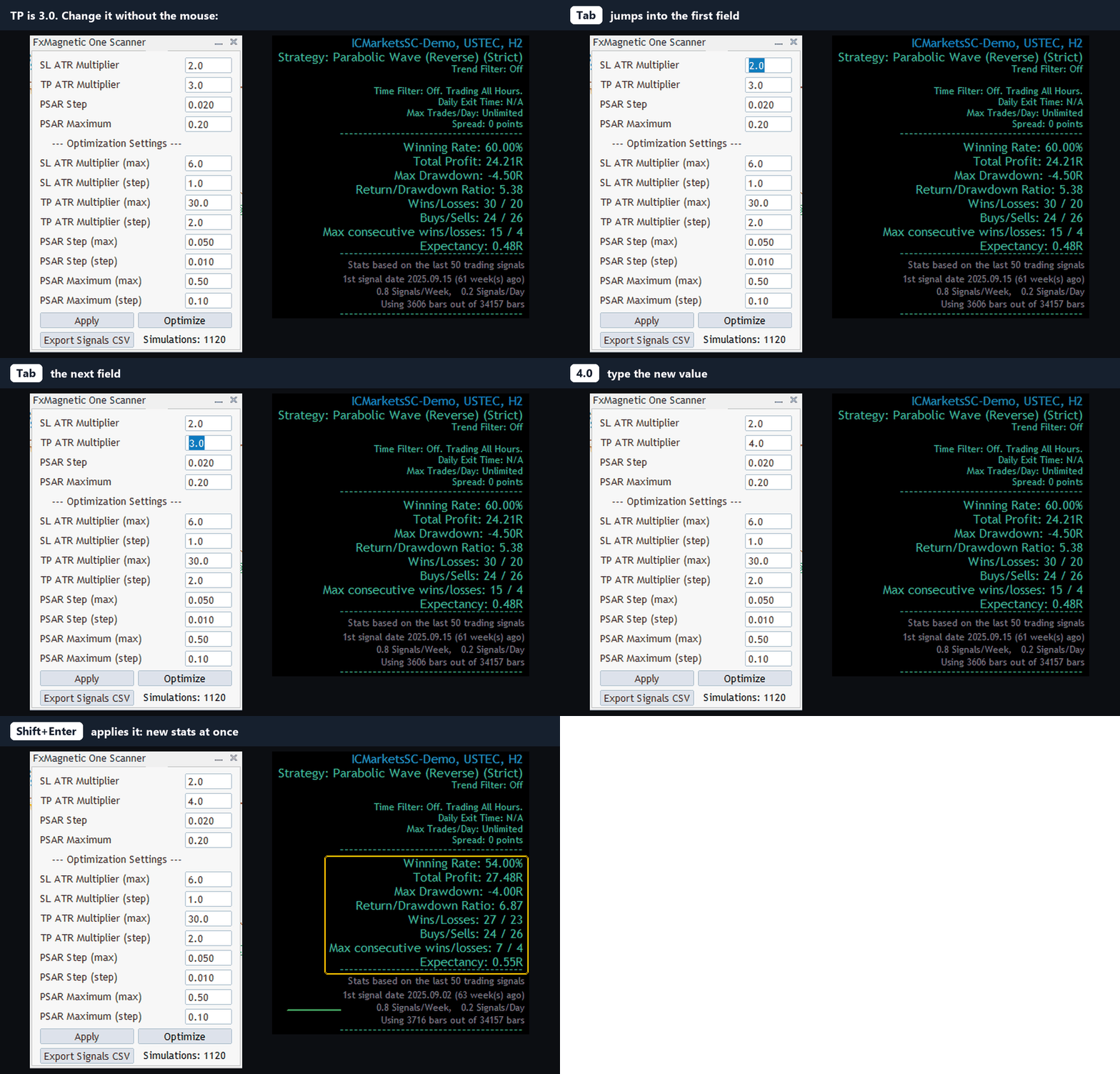
Set up a strategy without the mouse
In the Scanner panel, Tab jumps to the next field, Shift+Tab goes back and Shift+Enter applies the change. Copying a strategy from a CSV file or a screenshot now takes less than a minute: see from a CSV file and from a screenshot.
Trading hours in New York or London time, all year
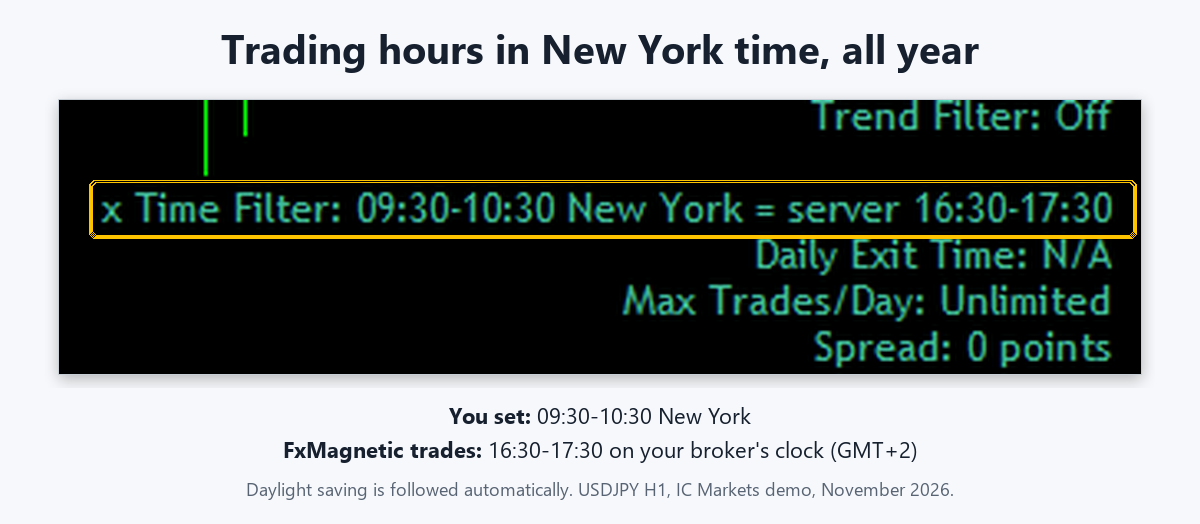
The new setting (P8c) Clock for Trading Hours and Exit Time lets you type your trading hours and daily exit time in New York, London, Frankfurt, Tokyo, Sydney, Hong Kong/Singapore, UTC or your broker’s clock. Daylight-saving changes are followed automatically on any broker, so “09:30–10:30 New York” stays the first New York hour all year. The panel shows both clocks. This replaces the old “shift session during US/EU DST mismatch weeks” setting.
Price history downloads by itself
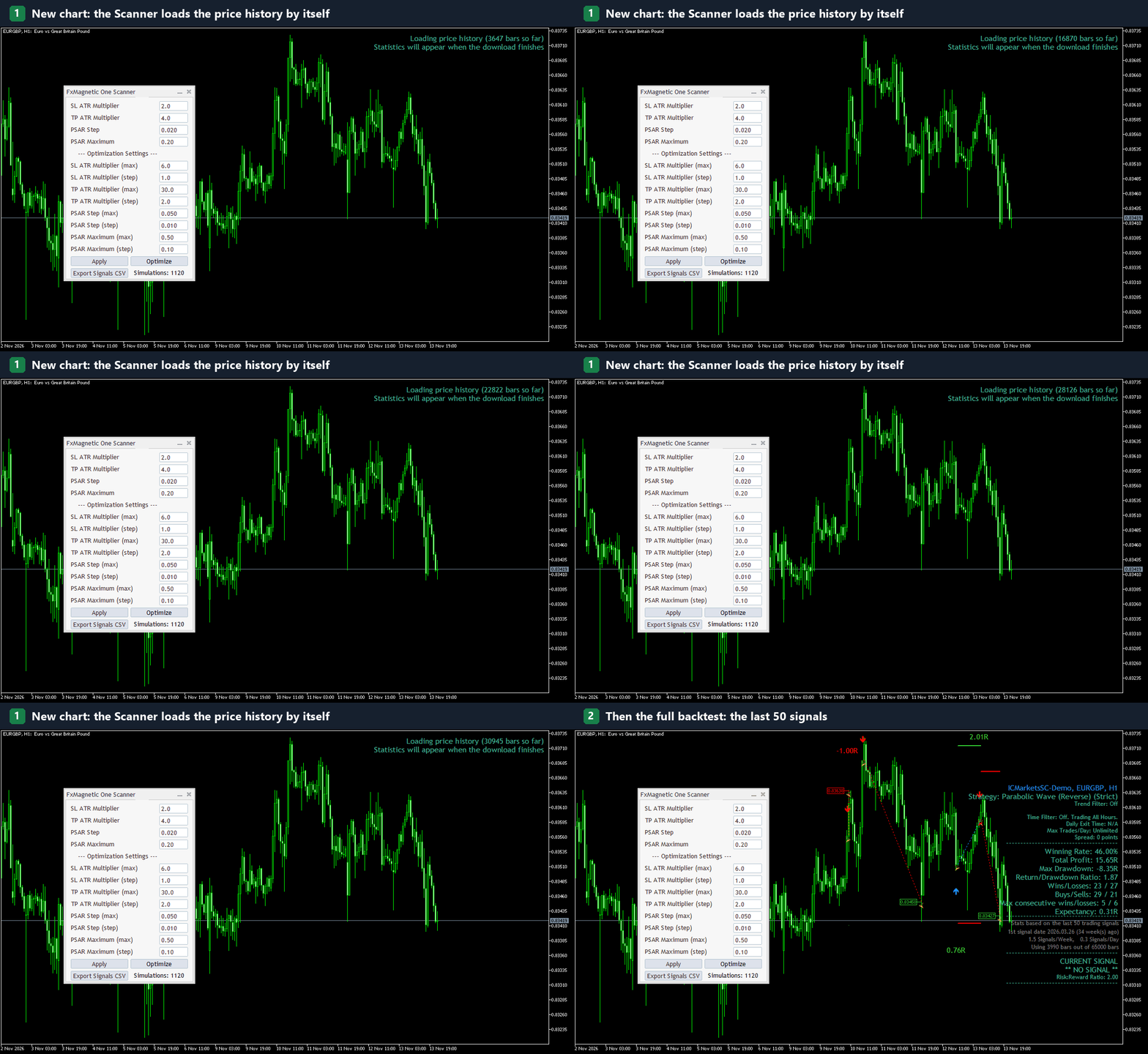
Open a symbol or timeframe you have never used, and the Scanner loads the price history it needs (“Loading price history … bars so far”). The statistics appear when the download is finished. More: How to download historical data.
Backtest on 200 signals
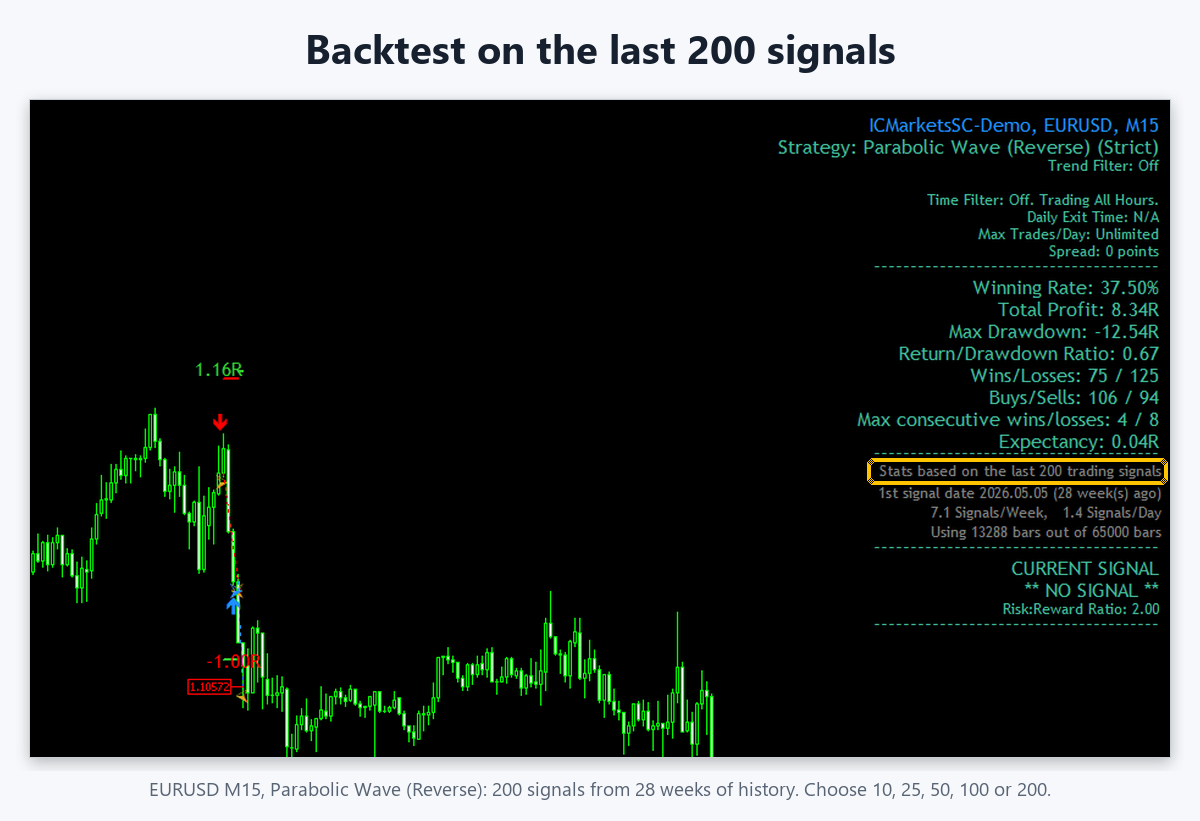
“How many signals to display” now offers 10, 25, 50, 100 and 200 in every app, for a much longer look at a strategy before you trust it. (Divergence Trader already had 10 and 200 since version 2.0.0.)
Safer trade handling, built for prop firms
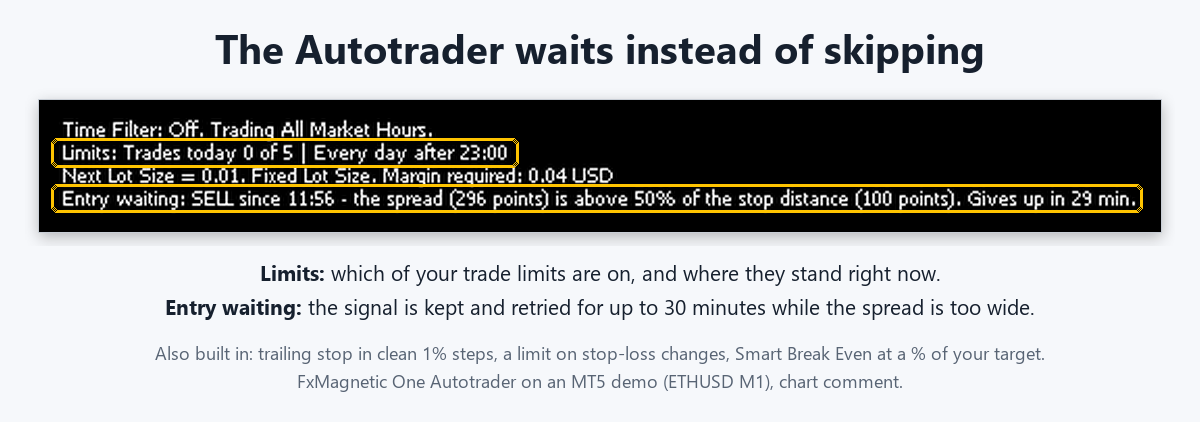
- When the market is closed or the spread is too wide (typical around midnight), the Autotrader waits up to 30 minutes for good conditions instead of skipping the trade. The chart comment shows “Entry waiting” with the reason.
- A close on the opposite signal is retried until it goes through, so a buy and a sell are never open at the same time.
- The trailing stop trails from the best price reached and moves in steps of at least 1%, and a built-in limit keeps stop-loss changes few and far apart (some brokers and prop firms suspend accounts that modify orders too often).
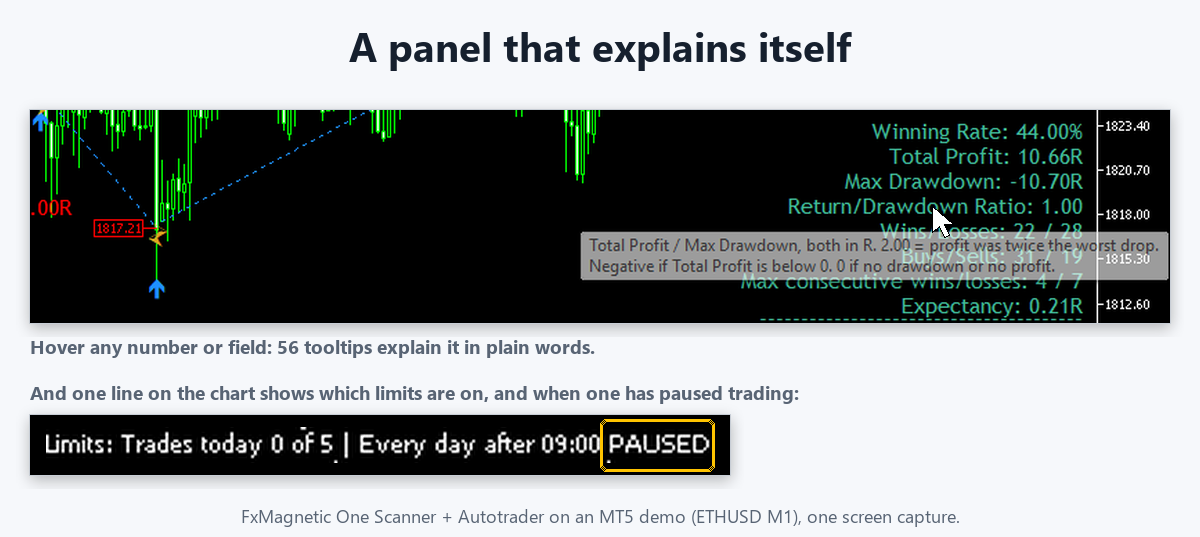
- One “Limits” line on the chart shows which of your trading limits are on and whether one has paused trading.
All Autotrader settings: How to Use the FxMagnetic Autotrader.
Daily Exit Time you can rely on
- The Daily Exit Time is checked on every tick, not only when a new bar opens.
- If the market closes (weekend or daily break) before your exit time comes, the trades are closed 10 minutes before the market closes, so a Friday trade isn’t held over the weekend by mistake.
- It closes only trades that were opened before the exit time.
Minimum lot protection
Sometimes your broker’s minimum lot would risk more than twice your risk setting. With Risk Per Trade (%), the Autotrader then skips the signal and tells you why. With a fixed lot, it trades the minimum lot and notes it.
Starts in Auto Trading mode
A new Autotrader starts in Auto Trading mode, so it trades without clicking the Auto/Manual button first. A mode you chose stays saved on the chart, and the button has a tooltip.
Running several Autotraders
Two Autotraders of the same app on different charts no longer block each other’s trades. The Autotrader also warns you when the Magic Number is 0, because 0 is the number of manual, phone and web trades.
A panel that explains itself
Hover over any statistic or panel field for a plain explanation of what it means.
Optimize: up to 10,000 simulations
Optimize starts right away with up to 10,000 simulations on any PC (before, it could fail to start above about 5,000). The Simulations count and the time left are now correct, and the panel shows “Too many: N” in red when your ranges ask for more.
Readable on laptop screens
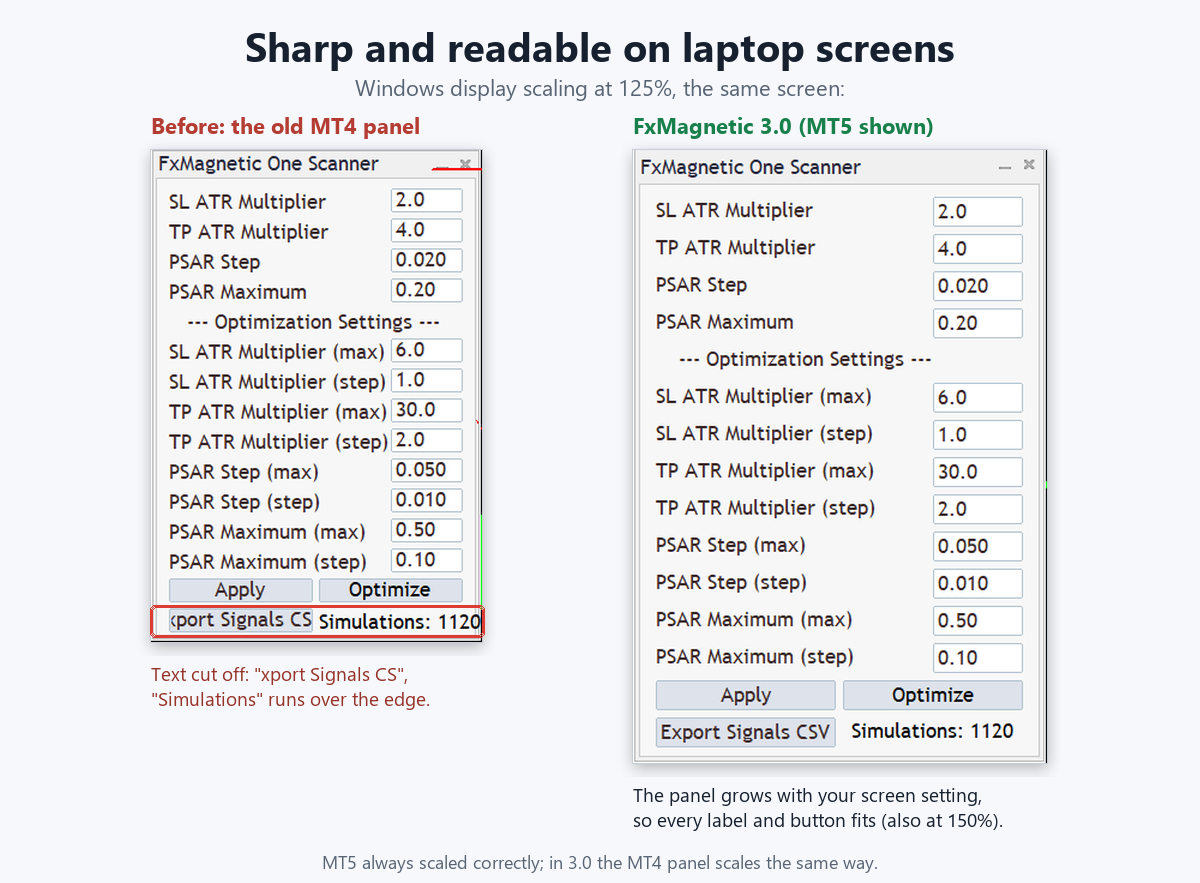
On MT4 the panel now grows with your Windows display setting (125%, 150%), as it always did on MT5. No more text cut off at “Export Signals CSV” or “Simulations”.
Strict or Flexible in every app
Every app now has the (P3) Pattern Flexibility Selector and starts new charts in Flexible mode. RSI, Bollinger Bands and Stochastic strategies, and the Doji, Spinning Top and Morning/Evening Star patterns, have new Strict rules: fewer signals, cleaner setups. The panel shows the mode after the strategy name, for example “(Strict)”. Flexible works exactly as before; Strict now really filters:
- RSI: Break-in only after RSI stayed beyond the level for at least 3 closed bars; Break-out only on the first break since RSI was on the other side of 50; RSI-SMA only when price was on the other side of the SMA for the 3 bars before the cross.
- Bollinger Bands: Break-out only out of a squeeze; Break-in only when the bands are not exploding; Break-out + Momentum only on the strongest momentum of the last 20 bars.
- Stochastic: Reversal only when the whole %K/%D cross is inside the zone; Power Move only on the bar where %K crosses the far level; Breakout only on the first break since %K was on the other side of 50.
- Candlestick patterns: Doji and Spinning Top check the pattern candle against Lookback Bars; Morning/Evening Star use a new “small star” rule.
- Divergence: Strict no longer uses a candle that hasn’t closed yet, so the backtest only shows divergences the Autotrader can really trade.
Other changes you may notice
These make backtests more accurate, so some numbers can differ from older versions:
- A break-even trade (0.00R) no longer counts as a win, so the win rate can be slightly lower.
- A stop loss hit through a price gap (for example over a weekend) counts its real loss in R, such as -5.2R, instead of -1R.
- NY Opening Range Breakout, London Breakout and the SR Levels sessions follow your broker’s clock automatically, read from price history (so backtests too). If your broker isn’t 7 hours ahead of New York like IC Markets, the ranges were drawn at the wrong hour before. The new input “Broker clock: hours ahead of New York” (99 = automatic) is only for the rare broker where it can’t be read. The SR Levels session inputs are gone; sessions are always automatic.
- MACD, Dual MA and Momentum strategies allow a fast period above the slow one.
- Doji follows “Candle Body Size %” (settings saved with 30 keep the old fixed 5%, so their results don’t change).
- The RSI Rebound trade filter’s Max Bars Delay default is now 5.
- Max Drawdown is shown in R.
…and more than 60 other fixes for the statistics, strategies, trade filters and the Autotrader. The full list is on the FxMagnetic update history page.
How to update to FxMagnetic 3.0.2
- Write down or save your settings. For every chart, open the Scanner’s and the Autotrader’s properties (Ctrl+I for the Scanner, F7 for the Autotrader) and click Save on the Inputs tab, or take a screenshot of the chart. The 3.0.2 files have new names, so your charts, templates and profiles don’t take over the old settings.
- Choose a quiet moment. The best time to switch is when the Autotrader has no open trade and the Scanner shows no current signal, for example on the weekend. If a trade is open, give the 3.0.2 Autotrader the same Magic Number, so it recognises that trade as its own.
- Download and install 3.0.2. In the Download Center, download the 3.0.2 version of your app. One ZIP contains both MT4 and MT5: run the MT4 auto-installer or the MT5 auto-installer, or copy the MQL4 folder (MT4) or the MQL5 folder (MT5) into your MetaTrader data folder: install on MT4 or install on MT5.
- Replace the apps on each chart. Remove the old Scanner and Autotrader, attach the 3.0.2 Scanner and Autotrader, enter your licence key (the same as before) and load your saved settings (Inputs tab, Load) or enter them again.
- Check Strict/Flexible. Settings saved with Strict stay Strict. For RSI, BB and Stochastic that now means the new Strict rules, so you may see fewer signals. Set Pattern Flexibility the same way in your Scanner and your Autotrader.
- Check the trading hours. If you used the old DST shift setting, set (P8c) Clock for Trading Hours and Exit Time instead and type the hours in that city’s time.
- Compare and test. Compare the Scanner’s statistics with what you had before; small differences are expected (see “Other changes” above). Run every strategy on a demo account first.
FAQ
Do I need a new licence key?
No. Your licence key stays the same. On MT5 it works when your licence includes MT5.
Can I keep using my old version?
Your charts keep running the version they have until you replace it. We recommend 3.0.2 for all new charts, and all new tutorials and support answers are based on 3.0.2.
Will my strategies give the same results in 3.0.2?
Mostly very similar. Results can differ a little because of the more accurate statistics, the broker-clock sessions and the new Strict rules (see “Other changes” above).
Where are the 3.0.2 tutorials?
Start with the FxMagnetic Setup Guide and the Autotrader guide. All tutorials are listed on the Tutorials page, many of them in Spanish, French, Italian, Portuguese and German.
