
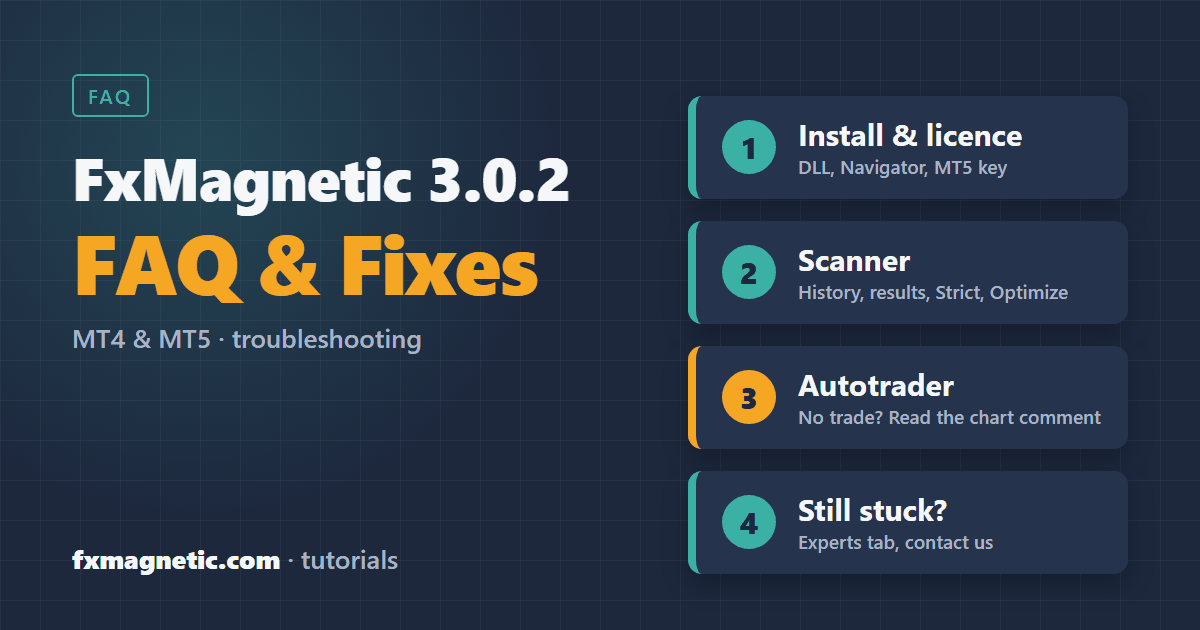
This page answers the questions we get most often about FxMagnetic 3.0.2 on MetaTrader 4 and MetaTrader 5: installation and licence, the Scanner (statistics, price history, results) and the Autotrader (why a trade didn’t open, pauses, trailing stop). Most problems are solved in a minute by reading the Scanner’s statistics panel or the Autotrader’s chart comment, because in 3.0.2 both tell you what they are doing.
Installation and licence
My browser or antivirus warns me about the download. Is it safe?
Yes. New downloads often get a warning. Choose Keep in the browser. The auto-installers are digitally signed: check the publisher and allow them, or install by hand by copying the MQL4 folder (MT4) or the MQL5 folder (MT5) into your MetaTrader data folder.
I installed FxMagnetic, but I can’t find it in MetaTrader.
- Press Ctrl+N to open the Navigator, right-click in it and choose Refresh, or restart MetaTrader.
- The Scanner is under Indicators, the Autotrader under Expert Advisors.
- With a manual install, check that you copied the MQL4 folder into an MT4 terminal and the MQL5 folder into an MT5 terminal (File > Open Data Folder shows the right place).
Step by step: install on MT4 or install on MT5.
“DLL call is not allowed” or the app doesn’t start.
FxMagnetic checks your licence through its own DLL, so DLL imports must be allowed in two places:
- MetaTrader: Tools > Options > Expert Advisors (MT5: Experts), tick Allow DLL imports. For the Autotrader also tick Allow automated trading (MT5: Allow algorithmic trading).
- The app’s own properties: the Common tab for the Scanner; for the MT5 Autotrader the Dependencies tab.
Do I need a new licence key for 3.0.2 or for MT5?
No new key: your licence key stays the same in 3.0.2. It works on MT5 when your licence includes MT5: subscriptions and ULTRA include it, and lifetime owners can add it with the MT5 Upgrade. MT4 works as before for everyone.
Must my computer stay on?
Yes. The screen may sleep, but the computer must stay on and online with MetaTrader running; otherwise the Scanner and the Autotrader can’t work. Many traders use a VPS for this.
Scanner
The Scanner shows no statistics, or “Loading price history”.
On a symbol or timeframe you haven’t used before, the Scanner first downloads the price history it needs. The statistics appear when it’s done; give it a minute. If your broker simply has too little history, choose fewer signals in (P1) How many signals to display, use a lower timeframe, or make rare settings (for example a high Lookback Bars value) less strict. More: How to download historical data.
The Scanner says “Time Filter: required by this strategy – set (P8a)”.
The Custom Opening Range and Custom Pre-Session breakouts start their range at the start of each window in (P8a) Custom Trading Hours, so they need it. Type a window such as 08:00-11:00 and choose its clock in (P8c) Clock for Trading Hours and Exit Time. More: Breakout Trader strategies.
Can I put two Scanners on the same chart?
Use one Scanner per chart. To test another strategy at the same time, open a second chart of the same symbol.
Why do I see different results than someone else, or than an older version?
- Another broker: brokers have slightly different prices and different amounts of history, so the same settings can give somewhat different statistics. See Broker Data Paradox.
- Newer bars: the statistics always use the latest signals, so they change as new trades close.
- An older version: 3.0.2 calculates some things more accurately (for example a break-even trade no longer counts as a win, and Breakout sessions follow your broker’s clock), and Strict has new rules. See What’s new in 3.0.2.
I get fewer signals than before with Strict.
Expected: in 3.0.2 Strict has stricter rules for RSI, Bollinger Bands, Stochastic and some candle patterns. New charts start in Flexible; a chart or set file saved with Strict keeps Strict. Check the mode after the strategy name on the chart, for example “(Strict)”. Set it the same way in the Scanner and the Autotrader.
Optimize is grey, or shows “Too many: N”.
Optimize runs up to 10,000 simulations at a time. If your optimization ranges ask for more, the panel shows “Too many: N” in red and Optimize stays grey. Use bigger steps or narrower ranges (hover over Optimize to see why it’s grey).
The panel text is cut off on my laptop.
Fixed in 3.0.2: on MT4 the panel now grows with your Windows display setting (125%, 150%), as it always did on MT5. Make sure the charts run the 3.0.2 Scanner.
Autotrader
The Scanner shows a signal, but the Autotrader didn’t open a trade.
Read the Autotrader’s chart comment first: in 3.0.2 it tells you why. Then check, in this order:
- A pause: the Limits line shows “PAUSED” when one of your Close & Pause rules (time, equity, win rate, losses in a row, trades per day) has stopped new trades.
- Entry waiting: the market was closed or the spread too wide (typical around midnight). The Autotrader keeps trying for up to 30 minutes and shows the reason and the minutes left.
- Trading hours: an “x” in front of the Time Filter line in the Scanner’s statistics means the trading window is closed right now.
- Algo trading: the Algo Trading / AutoTrading button in the toolbar is green, and Allow live trading (MT4) or Allow Algo Trading (MT5) is ticked on the Autotrader’s Common tab. The Auto/Manual button on the chart is on Auto.
- The account: your broker or prop firm allows Expert Advisors; on MT5 the account is a hedging account; the lot size fits your margin.
- The Experts and Journal tabs (Terminal / Toolbox, Ctrl+T): messages from the Autotrader and your broker.
What does “Entry waiting” mean?
The signal came while the broker refused orders (market closed) or while the spread was wider than half the stop distance. Instead of skipping the trade, the Autotrader waits for good conditions for up to 30 minutes (setting “Market Closed / Wide Spread: Retry Entry For X Minutes”). If conditions don’t return in time, it skips the signal and writes why in the Experts tab.
The Autotrader says my account is a netting account (MT5).
On MT5 the Autotrader needs a hedging account, which most forex and CFD brokers and prop firms provide. On a netting account (common for exchange-traded futures and stocks) the Scanner works, but the Autotrader doesn’t open trades. Ask your broker for a hedging MT5 account.
I run two Autotraders on the same symbol and only one trades.
Give every Autotrader its own Magic Number; with the same number they treat each other’s trades as their own. The Autotrader also warns you when the Magic Number is 0, because 0 is the number of manual, phone and web trades.
The trailing stop doesn’t move with every point.
That’s on purpose. The stop moves in steps of at least 1% of the trailing distance, and at most once every 5 seconds and 60 times per hour per trade. Some brokers and prop firms suspend accounts that modify orders too often. The chart comment shows exactly what break even and the trailing stop will do.
Why was my trade closed at a certain time?
- Daily Exit Time: trades opened before your (P8b) Daily Exit Time are closed at that time.
- Market break: with a Daily Exit Time, if the market closes (weekend or daily break) before your exit time comes, the trades are closed 10 minutes before the market closes, so a Friday trade isn’t held over the weekend by mistake.
- Opposite signal: in Regular and Reverse modes a new opposite signal closes the open trade.
- Close & Pause: a rule set to close trades (see close and pause on Friday).
The Autotrader skipped a signal because of the minimum lot.
With Risk Per Trade (%), when your broker’s minimum lot would risk more than twice your risk setting, the Autotrader skips the signal and says why. Use a larger balance, a smaller stop, or a broker with smaller minimum lots.
When should I start the Autotrader in Independent mode?
When the Scanner shows no current signal, so both start from the same point. In Indicator Sync mode (the default) it simply follows the Scanner on the same chart.
All Autotrader settings are explained in How to Use the FxMagnetic Autotrader.
Still stuck?
Describe what you see (chart, symbol, timeframe, the line in the Scanner’s statistics or the Autotrader’s chart comment) and copy the messages from the Experts tab, then contact us.
