
To run an FxMagnetic MT4 strategy on MT5 and on several prop accounts, copy MT4 EA trades to MT5 on the same VPS: run the FxMagnetic Autotrader on one MT4 “strategy” terminal and attach the Server EA of Local Trade Copier (LTC) by Algonexis Technologies, mt4copier.com, to one chart of that terminal. LTC Client then copies the trades to the MT5 and MT4 accounts that run in their own terminals on the same Windows VPS. Nothing goes through a cloud copier: the trades pass between the terminals as small files on the VPS’s own disk.
Updated November 2026 for Local Trade Copier 3.1.8.
FxMagnetic is MT4-only today, and the FxMagnetic homepage FAQ points MT5 users to Local Trade Copier. Here is the full setup.
Why one strategy terminal and a local copier
You could install FxMagnetic on every account. One strategy terminal with a local copier is simpler to run.
- One place to run and pause the strategy. Scanner settings, Autotrader settings and magic numbers sit in one MT4 terminal. When the Autotrader closes its trades, LTC Client closes the copies. When it pauses, no new trades reach the other accounts.
- The same trade decision on every account. Every copy comes from the same master trade, in the same direction and, by default, with the same stop loss and take profit. Each copy opens at its own broker’s current price, so fills can differ a little.
- MT5 accounts become possible. LTC copies MT4 to MT5 the same way it copies MT4 to MT4, so a prop account offered only on MT5 can still trade your FxMagnetic strategy.
- Per-account size. Each LTC Client sizes the copies for its own account, so a $10,000 challenge and a $100,000 account can follow one strategy.

The FxMagnetic Autotrader runs on the MT4 strategy terminal; LTC copies its trades from there.
In Algonexis’ own tests on demo accounts (October 2026, 5-9 MT4/MT5 terminals on one Windows PC, several brokers), a new master trade was open on the client accounts about a second later (median 1.3 seconds), including the client broker’s execution time; closes and SL/TP changes took a median of about 0.9 seconds.
When one VPS is the wrong setup
This stack needs every terminal on one Windows PC or VPS; Local Trade Copier doesn’t copy between computers. If you don’t want to run a VPS, if your accounts must trade from several machines, or if some are on platforms other than MT4 and MT5, a cloud copier service, which logs in to your accounts from its own servers, is the better choice. Some prop firms don’t allow cloud copiers (see below).
The self-hosted trade copier stack: what runs on the VPS
Everything runs inside MetaTrader terminals on one Windows VPS that you control. Each account has its own terminal, and each EA its own chart.
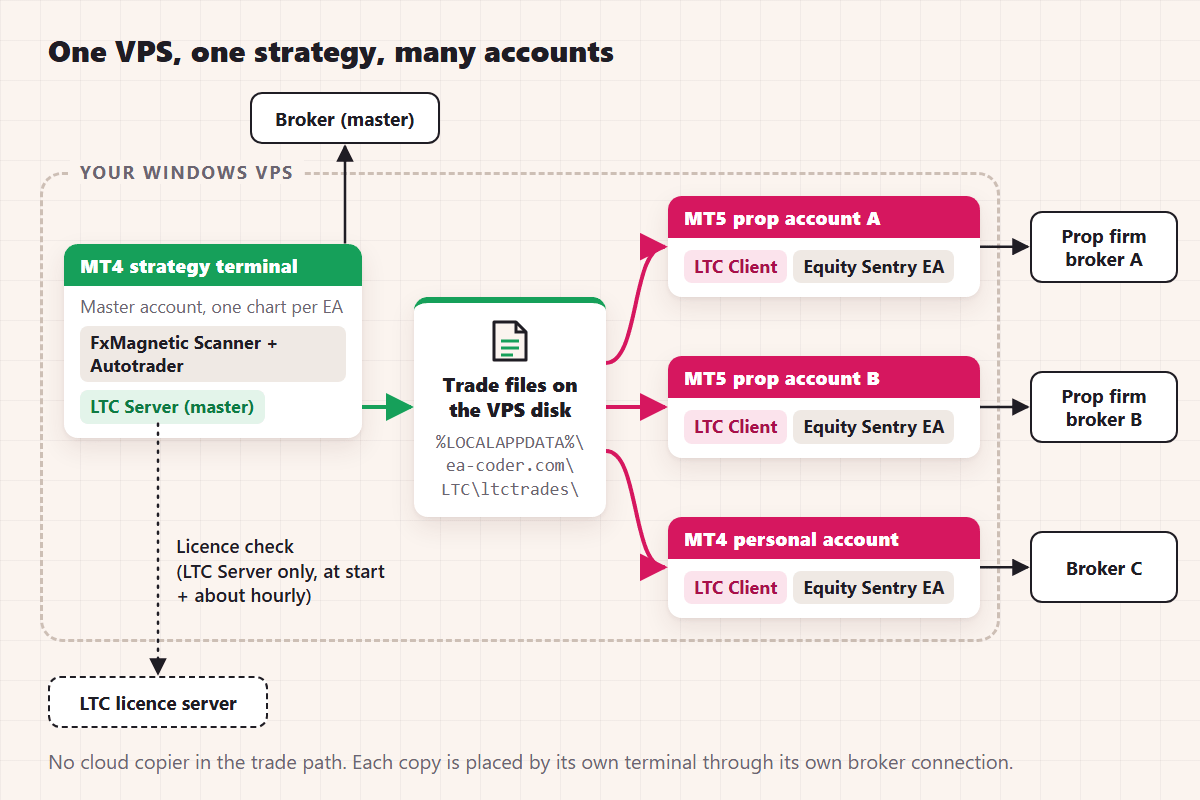
One strategy terminal feeds every account through local trade files on the same VPS.
| Component | Where it runs | What it does | Good to know |
|---|---|---|---|
| FxMagnetic Scanner + Autotrader | MT4 strategy terminal, one chart per strategy | The scanner finds the signals; the Autotrader places the trades on the master account | MT4 only. The Autotrader works together with its scanner. |
| LTC Server (master) | One free chart in the MT4 strategy terminal | Reads every trade on the master account and writes it to local trade files | Needs the licence key. One chart covers all symbols. |
| LTC Client | One chart in each MT5 or MT4 account’s terminal | Reads the trade files and places each copy with that account’s lot rules | Needs no licence key. Needs Algo Trading (AutoTrading) on. |
| Equity Sentry EA | One chart in each funded account’s terminal | Hard equity stop: closes all trades and disables AutoTrading when your level is hit | v1.9.7 has no automatic daily reset. |
How a trade moves. LTC Server checks the master account about every half second by default and writes each new trade to a small text file in %LOCALAPPDATA%\ea-coder.com\LTC\ltctrades<SPID>\ by default (plain ltctrades for SPID 1). Each LTC Client looks for master changes about every 0.1-0.2 seconds by default. It reads the file and places the copy through its own terminal’s connection to its own broker.
What goes online. Each terminal connects to its own broker, as always. LTC Server also checks its licence when it starts and about once an hour. That check sends no trades and no trading passwords. If the licence server can’t be reached it keeps copying and retries hourly for up to 4 days; if it rejects the licence it stops. LTC Client has no licence check. This section covers LTC only.
See also which MT4 copier runs locally without cloud routing, and how to check if a trade copier really runs locally on your own VPS.
How to copy MT4 EA trades to MT5 on the same VPS: step by step
Here is the trade copier VPS setup for MT4 and MT5, in order. Do it on demo accounts first.
- Get a Windows VPS or an always-on Windows PC. MetaTrader’s built-in VPS won’t work: LTC stops there with a message asking for a real Windows VPS.
- Install one MetaTrader terminal per account. MetaTrader logs in only one account per terminal at a time. Install each one in its own folder with a clear name, such as “MT5 Prop A”. Log in to each account yourself with File > Login to Trade Account; LTC never asks for your passwords. Use the trading password on every account, because LTC Client and the Autotrader place orders there.
- Allow Expert Advisors in every terminal. In Tools > Options > Expert Advisors, allow automated (Algo) trading and tick “Allow DLL imports”. LTC needs its DLL to read and write the local trade files. Then check that the AutoTrading (MT4) or Algo Trading (MT5) button is on.
- Set up the strategy terminal. Install your FxMagnetic app on the MT4 strategy terminal. Load the scanner and the Autotrader on each strategy chart, with its own magic number per strategy. Set the master’s risk per trade as usual (lot-size formula, R-multiples and ATR).
- Install LTC in every terminal. The MT4 strategy terminal gets LTC Server for MT4. Each MT5 terminal gets LTC Client for MT5, and each other MT4 terminal gets LTC Client for MT4. One subscription includes both the MT4 and the MT5 programs. See the installation guide.
- Attach LTC Server to one free chart of the strategy terminal. Use a chart without an Autotrader, because MetaTrader runs one EA per chart. Enter your licence key in
LicenseKeyand leaveSignal Provider IDat 1. - Attach LTC Client to one chart in each client terminal. Pick a chart of a symbol with the broker’s usual suffix, such as EURUSD+ or EURUSD.a. The default Symbol Mapping Mode, “Automatic – detect from Client EA chart”, uses that chart to choose the suffix and finds matching symbols by itself, including common alternative names such as XAUUSD and GOLD. To pick a client symbol yourself, add it to
CustomSymbolMappingas master=client, such asGOLD=XAUUSD. - Check Signal_Provider_ID and “Copy From These Master Accounts”.
Signal_Provider_IDmust match the Server’s value (1). “Copy From These Master Accounts” defaults to “All accounts with active Server EA on this PC”. If more than one master runs on the VPS, choose “Selected accounts (comma-separated list below)” and enter the strategy account number in “List of Specific Master Accounts”.
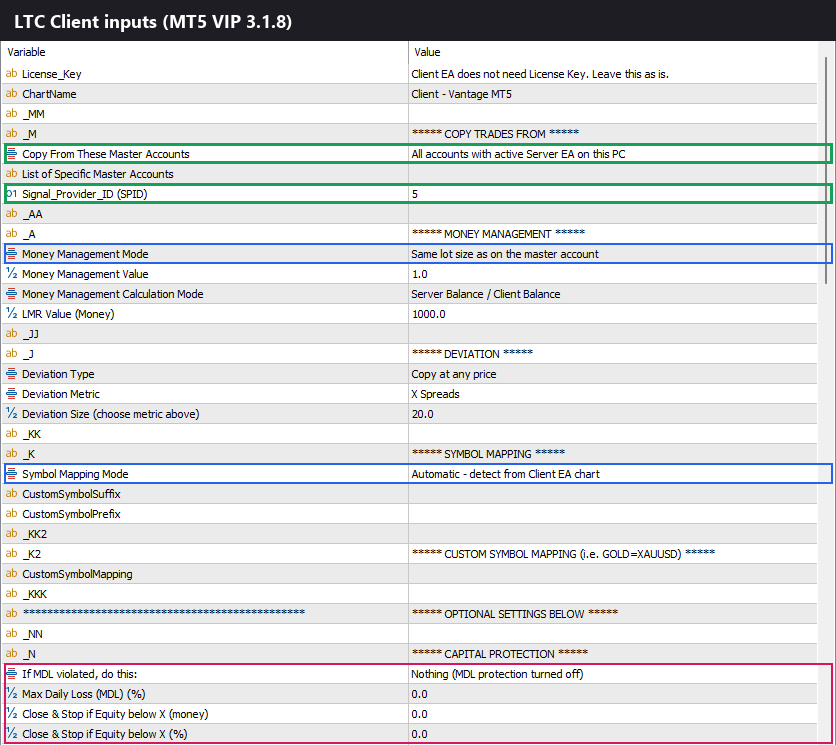
LTC Client inputs from the demo session (SPID 5): Signal_Provider_ID must match LTC Server's Signal Provider ID.
- Set the lot sizing on each client. The default Money Management Mode, “AA (Auto-Adjust to account size)”, sizes each copy by comparing the client account with the master (Server Balance / Client Balance by default). “Risk Per Trade (%)” sizes each copy from its stop loss instead; if a master trade has no stop loss, LTC falls back to auto-adjusted sizing for that copy and logs why. On small prop accounts, keep
MaxMinLotUpsizeat its default of 2.0: LTC rounds a copy up to the broker’s minimum lot only if that is at most twice the calculated lot. With a 0.01 minimum, a calculated 0.006 lots is copied as 0.01; a calculated 0.004 lots would be 2.5 times bigger, so it isn’t copied and the log says why. Every setting is in the LTC Client manual and the MT4 to MT5 configuration guide. - Add Equity Sentry EA to each funded account. Attach it to a separate chart in that account’s terminal and set the equity level a little inside your firm’s limit. When the level is hit, it closes all trades and disables AutoTrading. LTC Client in that terminal then switches to passive mode and copies nothing until AutoTrading is on again. Equity Sentry EA v1.9.7 has no automatic daily reset, so for a daily loss limit, set the level before each session. LTC Client also has its own optional Max Daily Loss (MDL) setting, whose actions include “Close all trades & do not copy until tomorrow”.
- Test with one small trade. By default, LTC Client copies only trades the master opens after the Client has started. Open a small trade on the master and check each client’s Trade and Experts tabs. A successful copy logs a line such as “COPIED new market order #… from server #… as #…” with the symbol, lots, price, SL and TP.
Build and test this whole stack on the 7-day free trial of Local Trade Copier before you connect a funded account.
VPS sizing: one VPS for multiple prop accounts
Count terminals, not accounts. The stack in the diagram uses four terminals: one MT4 strategy terminal and three client terminals. The pricing FAQ recommends 2 CPU cores and 4 GB RAM for up to 4 MetaTrader 4/5 terminals, 6 cores and 16 GB for up to 25, and 20 cores and 32 GB for up to 150.
In the demo session for these articles (one Windows PC, four terminals at four brokers, LTC 3.1.8 on one chart each), each terminal used 84 to 145 MB of private memory, about 425 MB for all four:
| Terminal | Role | Private memory |
|---|---|---|
| MT5, IC Markets demo | Master, LTC Server (plus one test chart) | 145 MB |
| MT5, Pepperstone demo | Client, LTC Client | 96 MB |
| MT5, Vantage demo | Client, LTC Client | 99 MB |
| MT4, FXCM demo | Client, LTC Client | 84 MB |
Scanners with long backtests and many open charts need more, so treat these as a floor.
LTC’s documentation recommends keeping CPU and memory use below 70%; leave headroom for scanner optimisations.
A home Windows PC can run the stack too, but it copies only while it is on, awake and online. LTC also runs on a Mac through Wine.
The licence counts computers, not accounts. Every LTC plan copies to unlimited MT4 and MT5 accounts; the limit is the computer’s resources. Personal costs €29 a month (€290 a year) for 1 PC or VPS. Manager (€89 a month) covers 5 and VIP (€199 a month) covers 15; both add position size splitting, martingale mode (MT4), the MAAB Trade Filter and copying across Windows user profiles.
Self-hosted trade copier for prop firms: check the rules first
Prop firms write their own copy-trading rules, and they change them. Read your firm’s current rules before you connect a challenge or funded account.
One example, checked on 3 November 2026: FundedNext’s help page on its copy-trading rule, dated 18 September 2026, says “Using external cloud-based copy trading services […] is not allowed.” The same page says a VPS-based trade copier “is permitted, but only between a trader’s own FundedNext Challenge Accounts”, with a combined cap of $300,000 across those accounts. The permission names Challenge Accounts only, and the same page prohibits copy trading between a FundedNext Account and any other FundedNext Account or FundedNext Challenge Account. So at that firm, check which type each of your accounts is before you copy between them.
Questions to answer from your own firm’s rules:
- Is copying between your own accounts allowed, and does that include funded accounts or only challenges?
- Is there a cap on the total capital you copy to?
- Are Expert Advisors, trade copiers and a VPS allowed?
- Are there rules on IP addresses, VPNs or the country you trade from?
Where a rule allows copying between your own accounts on your own VPS, this stack matches that description. Each copy is placed by the client account’s own MetaTrader terminal, through that terminal’s own connection to its broker, from your VPS. No outside service logs in to your accounts, and no third party holds your trading passwords. The setup doesn’t make anything allowed by itself; your firm’s rules decide. See also the prop-firm page on mt4copier.com.
Manual-Like Entry (trade humanization). LTC Client has an optional ExecutionMode called “Manual-Like Entry Execution”. It opens each copy through MetaTrader’s own New Order window, the way a trader places a trade by hand. In this mode LTC copies market orders only and ignores pending orders. It changes how a trade is placed, not what an account’s rules allow (details).
A weekly operator routine
Monday, before the session
- Connect to the VPS with Remote Desktop. Check that every terminal is open, connected to its broker, and has AutoTrading or Algo Trading on.
- Check the LTC Client dashboard on each client chart: the right Signal Provider ID and no warning messages.
- Read each client’s Experts tab. Search for “ATTENTION” (a copy delayed by more than 10 seconds, or a trade skipped by
MaxMinLotUpsize), “DELAYED” and “lost connection with the … master account”. - Compare open trades: the master and each client should hold the same symbols in the same direction. By default, a copy’s magic number is the master’s ticket number.
- Review your strategies in the scanner, as in this semi-automated FTMO challenge process. Change them only on the strategy terminal; the copies follow.
Friday: flat or hold for the weekend
- Decide in one place. The FxMagnetic Autotrader can close its trades and pause trading on Friday at a set broker time. LTC Client follows the master’s closes, so every account goes flat with it.
- To stop new copies on one client but keep managing its open copies, set
AcceptNewTradeSignals = falseon that client.
Failure checklist
| What happened | What LTC does | What to do |
|---|---|---|
| The VPS rebooted | LTC doesn’t start MetaTrader itself, so nothing is copied until the terminals run again. | Start every terminal again, clients before the strategy terminal. Shortcuts in the Windows Startup folder start them when your Windows user logs in. MetaTrader reopens its charts and EAs. LTC Server needs internet for its licence check to start. |
| The master terminal closed or froze | The copies stay open. About 60 to 75 seconds after the master’s last heartbeat, each Client logs that it lost the master. | Restart the strategy terminal. LTC Server reads all open trades again, and the Clients follow closes made meanwhile. |
| A client terminal restarted | Trades the master opened while the Client was off are not copied by default. Earlier copies stay managed: SL/TP changes and full closes are applied after the restart. | Set CopyExistingMasterTradesOnStart = true, which copies the master’s open trades at current prices when the Client starts. A trade you open by hand isn’t linked to the master, so LTC won’t manage it. |
| AutoTrading is off on a client | LTC Client runs in passive mode and copies nothing on that account. | If Equity Sentry EA turned it off, the stop did its job; check the account before you turn it back on. Then compare the master’s and the client’s open trades. |
| A terminal lost its broker connection | That terminal copies nothing while disconnected. LTC Server shows “Connection with the broker server was lost…”. | Check the VPS’s internet, firewall and broker server. After it reconnects, compare open trades. |
FAQ
Is FxMagnetic available for MT5?
No, FxMagnetic runs on MT4 today. To trade an FxMagnetic strategy on MT5, run it on an MT4 terminal and copy its trades to your MT5 accounts with Local Trade Copier on the same Windows PC or VPS.
Can I copy MT4 EA trades to MT5 on the same VPS?
Yes. LTC Server copies trades from Expert Advisors the same way as manual trades, so one Server chart covers every FxMagnetic Autotrader on the strategy account. LTC Client on each MT5 terminal then places the copy, sized for that account.
How many accounts can I copy one EA to?
As many as your VPS can run. Every LTC plan copies to unlimited MT4 and MT5 accounts on each PC or VPS it covers, but each account needs its own terminal, so size the VPS by terminals.
Does LTC need my prop account passwords?
No. You log in to each account in its own MetaTrader terminal yourself, and LTC never asks for, stores or sends a trading password.
Which account should be the master?
The master is the MT4 account where the FxMagnetic Autotrader trades, either a personal live account or a demo account. If the master is itself a prop account, check that firm’s rules on copying from it.
Rimantas Petrauskas, who has built trading tools for MetaTrader traders since 2009, created Local Trade Copier in 2010 and also makes FxMagnetic and Equity Sentry EA. 10,000+ LTC licences have been sold to buyers in 100+ countries, and LTC has 500+ reviews on Trustpilot and Forex Peace Army combined; the current version is 3.1.8 (22 October 2026). To run this stack on your own VPS, start the 7-day free trial of Local Trade Copier. The FxMagnetic apps are on the FxMagnetic Collection page.
