
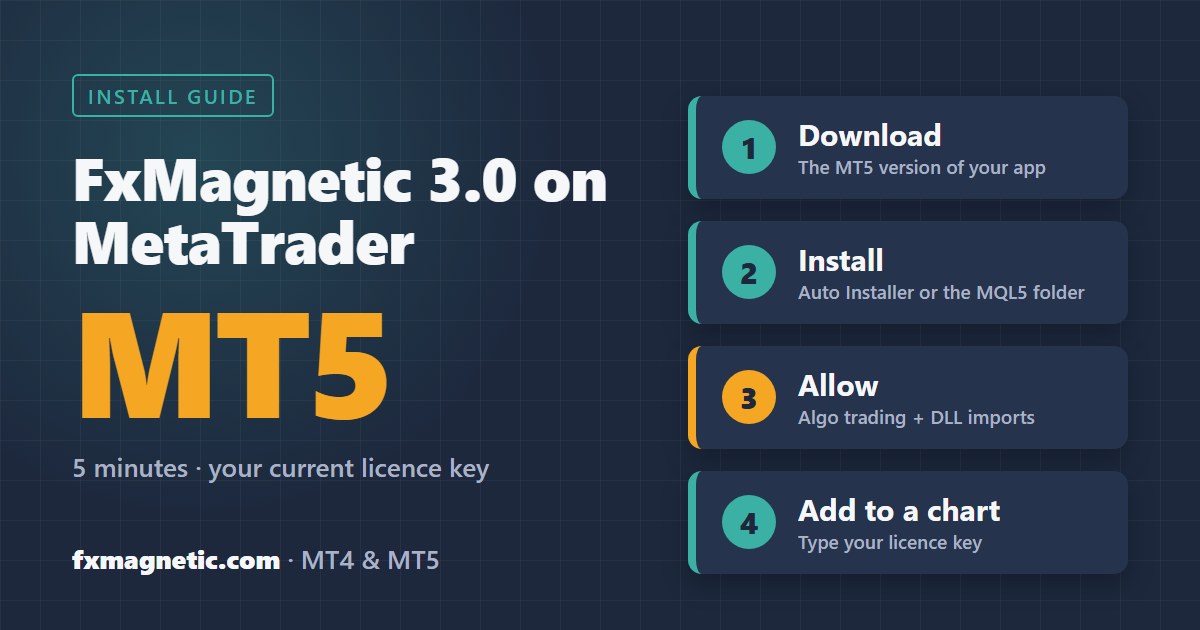
To install FxMagnetic on MetaTrader 5, download the 3.0.2 ZIP of your app from the Download Center, run the MT5 auto-installer (or copy the MQL5 folder into your MT5 data folder), and turn on “Allow algorithmic trading” and “Allow DLL imports” in MT5. You use the same licence key as on MT4. MT5 is included in FxMagnetic subscriptions and in FxMagnetic ULTRA; with a lifetime licence you need the FxMagnetic MT5 Upgrade. The whole setup takes about five minutes.
This guide covers every FxMagnetic 3.0.2 app on MT5: FxMagnetic One, the Labs apps (Technical, Candlestick, Alpha), the single Trader apps, the four trade filters (Trend, Daily Compass, Hull Shield, SR Levels) and the Equity Simulator. Each strategy app has two parts: a Scanner (an indicator that finds and backtests strategies) and an Autotrader (an Expert Advisor that trades them for you). Looking for MT4? See How to Install FxMagnetic on MT4.
Before you start
- MetaTrader 5 installed on your Windows PC or VPS, logged in to your broker or prop-firm account.
- Your Download Center login (it’s in your purchase or MT5 delivery email).
- Your FxMagnetic licence key: the same key you use on MT4.
- For the Autotrader: a hedging MT5 account. That’s what most forex and CFD brokers and prop firms give you. See “Common problems” below for netting accounts.
Step 1: Download the 3.0.2 ZIP
- Open the Download Center and log in.
- Go to Downloads and click your FxMagnetic product.
- Download the latest version (it’s at the top of the list). Each app has one ZIP file with both the MT4 and the MT5 version inside.
- If your browser warns you about the download, choose Keep.

Step 2: Extract the ZIP file
- Right-click the downloaded ZIP file and choose Extract All, then Extract.
- Open the new folder. You’ll see two auto-installers (one for MT4, one for MT5), an MQL4 and an MQL5 folder, and a Tutorials folder. For MetaTrader 5 you only need the MT5 auto-installer or the MQL5 folder.
Step 3: Install it (choose one way)
Method A: MT5 auto-installer (recommended)
- Double-click the auto-installer with MT5 in its name (for example “FxMagnetic Technical Labs MT5 … auto-installer”) and accept the agreement.
- Select the MetaTrader 5 terminal(s) you want to install into. If yours isn’t listed, use Browse to find its folder.
- Click Next, then Finish.
Method B: Manual installation
- In MetaTrader 5, click File > Open Data Folder.
- Copy the MQL5 folder from the extracted ZIP into that data folder. When Windows asks to replace files, click Replace.
- Make sure you copy the MQL5 folder (not MQL4) into the folder of your MT5 terminal.
Step 4: Turn on the MT5 settings
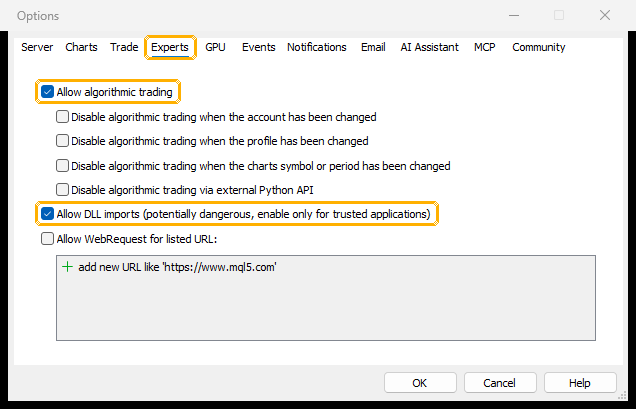
- In MetaTrader 5, open Tools > Options > Experts.
- Tick Allow algorithmic trading (needed for the Autotrader).
- Tick Allow DLL imports. FxMagnetic checks your licence through its own DLL, so the apps can’t start without it.
- Click OK. Check that the Algo Trading button in the toolbar is green.
Step 5: Add the Scanner and the Autotrader to a chart
- Press Ctrl+N to open the Navigator. Right-click inside it and choose Refresh.
- Find the Scanner under Indicators and the Autotrader under Expert Advisors (for example “FxMagnetic One Scanner MT5” and “FxMagnetic One Autotrader MT5”).
- Drag the Scanner onto a chart. On the Common tab, make sure Allow DLL imports is ticked. On the Inputs tab, type your licence key into License Key. Click OK.
- Drag the Autotrader onto the same chart. On the Common tab, tick Allow Algo Trading. On the Dependencies tab, tick Allow DLL imports. Enter the same licence key, then click OK.
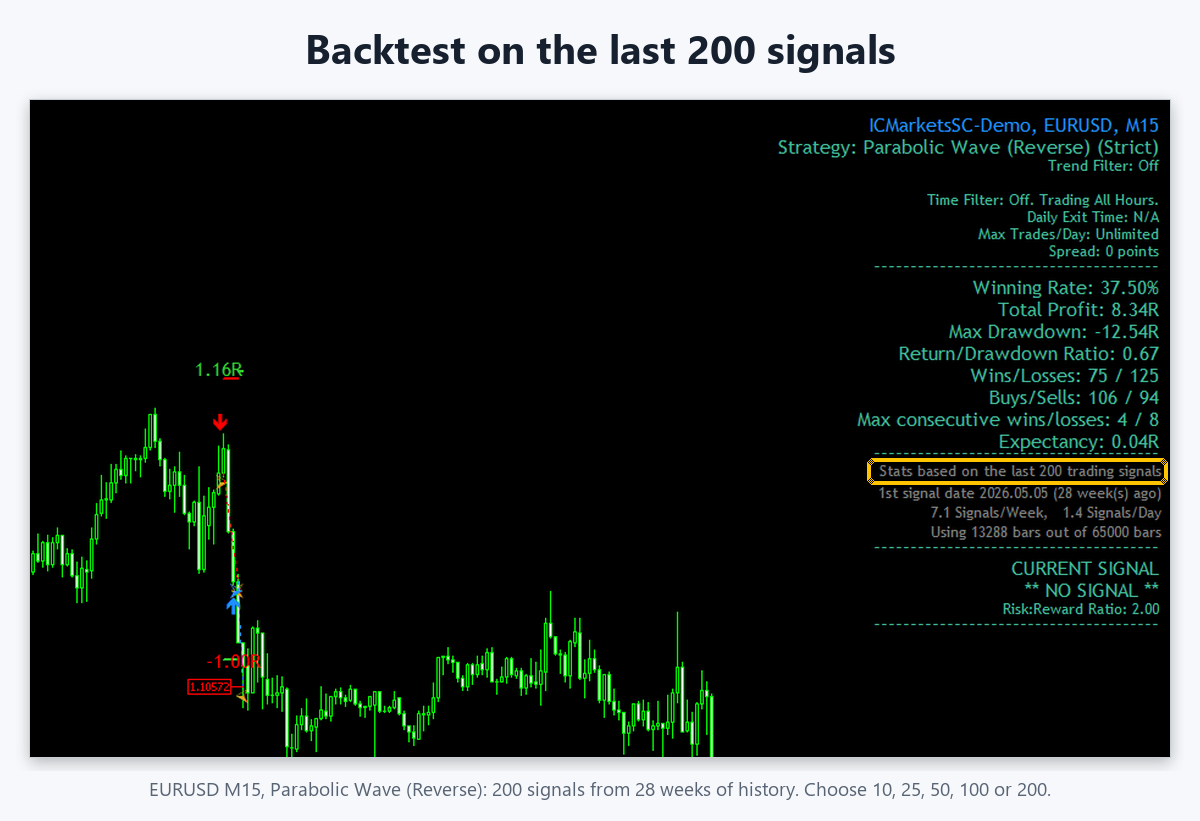
The Scanner panel appears on the chart and starts backtesting. If MT5 doesn’t have the price history yet, it loads it first, and the statistics appear when the download is done.
Bringing your MT4 strategies over
Your FxMagnetic settings work the same way on MT5. Enter the same strategy and values in the Scanner panel (or load them as you do on MT4), and you get the same strategy on MT5. Results can differ a little, because each broker’s MT5 price data is different from its MT4 data.
Common problems
- “DLL call is not allowed … cannot run.” Allow DLL imports is off. Turn it on in Tools > Options > Experts, and in the app’s own properties (Common tab for the Scanner, Dependencies tab for the Autotrader).
- The apps don’t show up in the Navigator. Right-click the Navigator and choose Refresh, or restart MT5. With a manual install, check that you copied the MQL5 folder into the MT5 data folder, not into MT4.
- The Autotrader doesn’t trade. Check that the Algo Trading button is green and that “Allow Algo Trading” is ticked on the Autotrader’s Common tab.
- The Autotrader shows a red message about a netting account. The FxMagnetic Autotrader needs a hedging account. On a netting account (common for exchange-traded futures and stocks) the Scanner still works, but the Autotrader won’t open trades. Ask your broker for a hedging MT5 account. Netting support is planned for a later update.
- Windows or your antivirus asks about the Auto Installer. The Auto Installer is digitally signed. Check the publisher and allow it, or use the manual method.
FAQ
Do I need a new licence key for MT5?
No. Your current FxMagnetic licence key works on MT5 for the apps you own.
Will my MT4 version keep working?
Yes. Installing the MT5 version doesn’t change anything on MT4.
Can I use FxMagnetic on a prop-firm MT5 account?
Yes, on any MT5 account where the firm allows Expert Advisors and indicators. Check your firm’s rules first.
Which MT5 timeframes work?
All of them, including the MT5-only timeframes such as M2, M10, H2, H3, H6, H8 and H12.
Need help? Reply to your delivery email or contact us at fxmagnetic.com/contact-us. FxMagnetic is developed by Algonexis Technologies.
