
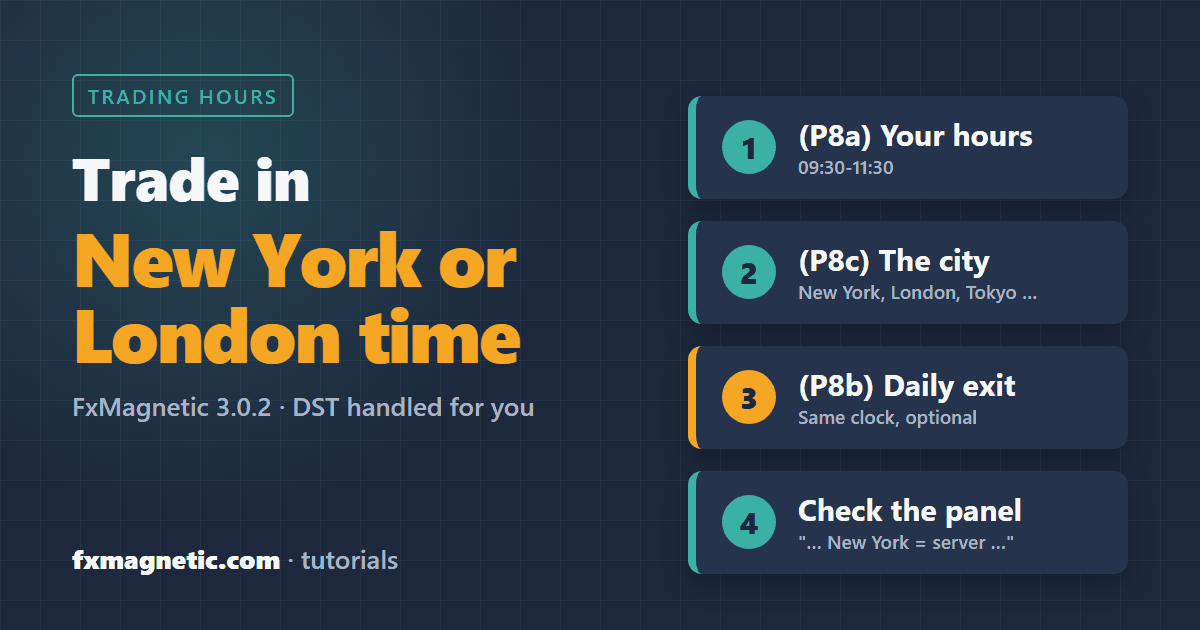
To trade only in New York or London hours, type your hours in (P8a) Custom Trading Hours (for example 09:30-11:30) and choose the city in (P8c) Clock for Trading Hours and Exit Time (for example New York). FxMagnetic 3.0.2 converts those hours to your broker’s clock and follows daylight-saving changes automatically, so “09:30-11:30 New York” stays the first two New York hours all year, on any broker. The Scanner panel shows both times, so you can check it at a glance.
This works in every FxMagnetic 3.0.2 app on MT4 and MT5. The Autotrader in Indicator Sync mode takes the same hours from the Scanner.
Why city time matters
Most brokers run their MetaTrader clock on their own time zone, often 2 or 3 hours ahead of London. On top of that, the US and Europe change their clocks on different dates in March and October/November. If you type broker hours, the New York open can move by an hour during those weeks, and the same hours mean something else at another broker. With a city clock you type the hours the way you think about them (“the first hour after the New York open”), and FxMagnetic does the conversion every day. Backtests use each week’s real clock too.
This replaces the old “shift session during DST mismatch weeks” setting of earlier versions.
The settings
All three are in the Scanner’s Inputs tab (Ctrl+I, select the Scanner, Edit), in the TIME FILTER section:
| Setting | What it does | Example |
|---|---|---|
| (P8a) Custom Trading Hours | New signals only inside these windows. Several windows are separated by a semicolon. Empty = all hours. | 09:30-11:30 or 08:00-11:00;13:30-16:00 |
| (P8b) Daily Exit Time | Every day at this time, trades opened before it are closed. Empty = no daily exit. | 16:00 |
| (P8c) Clock for Trading Hours and Exit Time | The clock (P8a) and (P8b) are typed in: Broker server time (Market Watch clock), UTC / GMT, Sydney, Tokyo, Hong Kong / Singapore, Frankfurt, London or New York. | New York |
| (P8d) Broker clock: hours ahead of New York | Leave it at 99 (automatic). FxMagnetic measures your broker’s clock from the price history every week. Set it only for the rare broker where that isn’t possible. | 99 |
Step by step
- Open the Scanner’s properties (Ctrl+I, select the FxMagnetic Scanner, Edit) and go to the Inputs tab.
- In (P8a) Custom Trading Hours, type your window, for example 09:30-11:30. Always use two digits for hours and minutes (09:30, not 9:30).
- In (P8c) Clock for Trading Hours and Exit Time, choose New York.
- Optional: type a (P8b) Daily Exit Time, for example 16:00. It uses the same clock.
- Click OK. The Scanner recalculates, and the statistics now count only signals inside your hours.
- Check the Time Filter line in the Scanner’s statistics. It shows your hours and today’s broker hours:
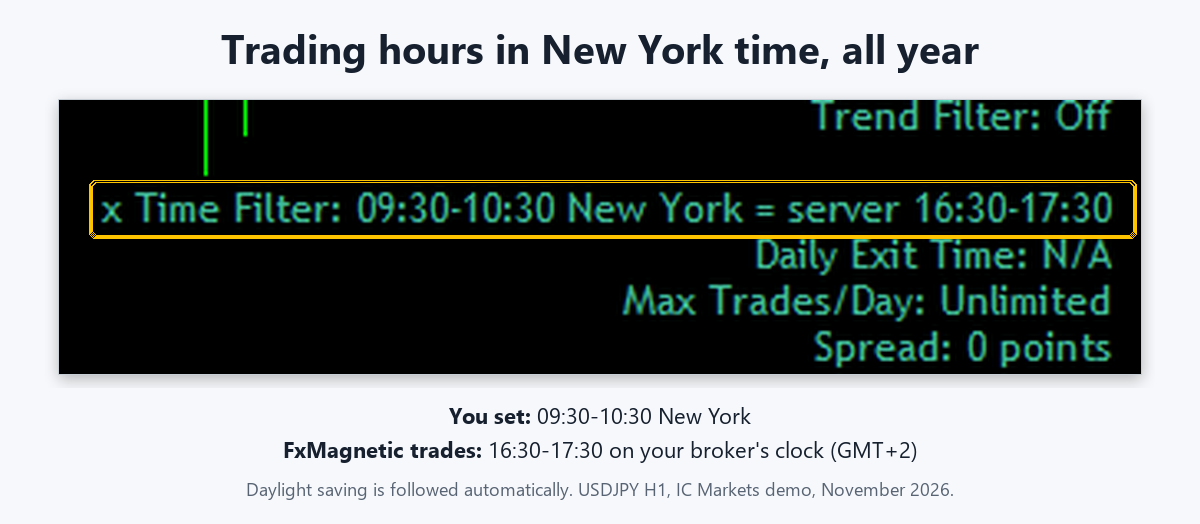
“Time Filter: 09:30-10:30 New York = server 16:30-17:30” on IC Markets, which is 7 hours ahead of New York. An “x” in front means the window is closed right now.
The Autotrader in Indicator Sync mode (the default) uses the Scanner’s hours and clock automatically. In Independent mode, set the same three values in the Autotrader’s own inputs (Time Filter, Exit Time and Clock for Trading Hours and Exit Time).
Examples
| You want to trade | (P8a) Custom Trading Hours | (P8c) Clock |
|---|---|---|
| The first two hours after the New York open | 09:30-11:30 | New York |
| The London morning | 08:00-12:00 | London |
| The London–New York overlap | 08:00-12:00 | New York |
| London morning and New York afternoon | 08:00-11:00;13:30-16:00 | London |
| The Tokyo session | 09:00-15:00 | Tokyo |
| A window over midnight | 22:00-02:00 | UTC / GMT |
| Everything except the midnight rollover (broker time) | 01:00-23:00 | Broker server time |
And for the exit: (P8b) Daily Exit Time = 16:00 with the New York clock closes the day’s trades at the New York stock market close, all year.
Breakout strategies
- New York Opening Range Breakout and London Breakout find the New York open (09:30 New York) and the London open (08:00 London) on your broker’s clock by themselves. You don’t need a time filter for that; use (P8a) only to limit how late a breakout may be taken.
- Entries come after the range. With New York ORB, “Range Minutes” 60 and a window 09:30-10:30, the range ends exactly when the window closes, so there are no trades. Use a longer window (09:30-11:30) or a shorter range.
- Custom Opening Range and Custom Pre-Session start their range at the start of each (P8a) window, so they need it. Without it the panel says “Time Filter: required by this strategy – set (P8a)”. More: Breakout Trader strategies.
Good to know
- The end time is not included: 09:30-10:30 takes signals from 09:30 up to 10:29.
- A window can cross midnight (22:00-02:00). A window with the same start and end time is ignored.
- The time filter decides when new trades may start. Open trades are closed by your stop loss, take profit, an opposite signal or the Daily Exit Time.
- With a Daily Exit Time: if the market closes (weekend or daily break) before your exit time comes, the trades are closed 10 minutes before the market closes, so they aren’t held over the weekend by mistake.
- The Autotrader’s Close & Pause Trading On Time (IfDay, IfTimeAfter) stays on broker server time. See close and pause trading on Friday.
FAQ
Do I need to change my hours when the clocks change?
No. With a city clock, FxMagnetic follows that city’s daylight-saving changes automatically, including the weeks when the US and Europe change on different dates.
Which clock is “Broker server time”?
The time shown in MetaTrader’s Market Watch window. Choose it if you prefer to type broker hours, as in earlier versions.
My statistics show no signals after I set the hours.
Check that the hours use two digits (09:30), that the window isn’t too short for your strategy (see the Breakout note above), and that the Time Filter line shows the hours you expect.
Can the Scanner and the Autotrader use different hours?
In Indicator Sync mode the Autotrader always uses the Scanner’s hours, so they match. Only in Independent mode does the Autotrader use its own inputs.
All Autotrader settings: How to Use the FxMagnetic Autotrader. Questions: FxMagnetic 3.0.2 FAQ.
